Interiorify Pro · the full tour1:30
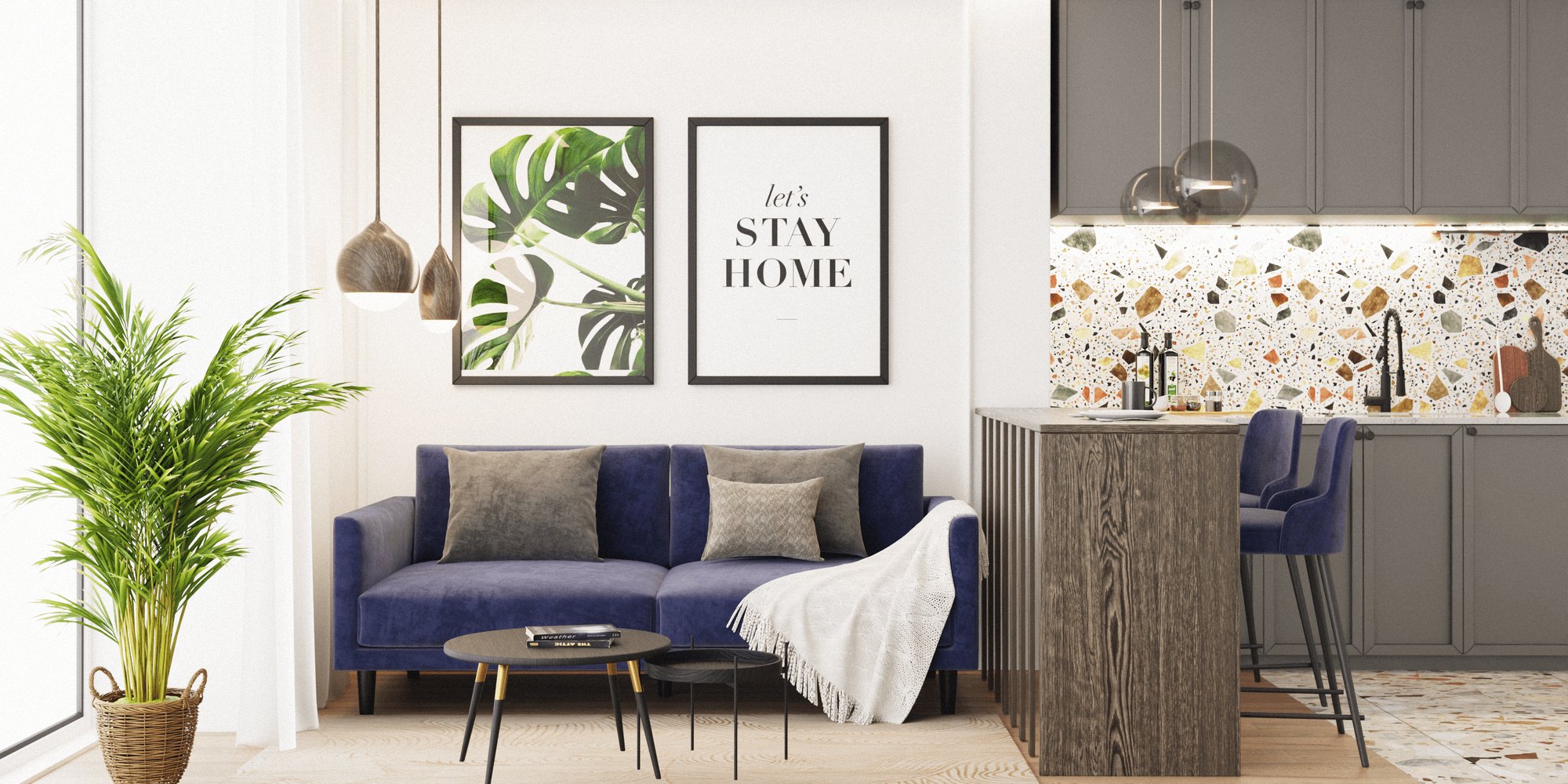
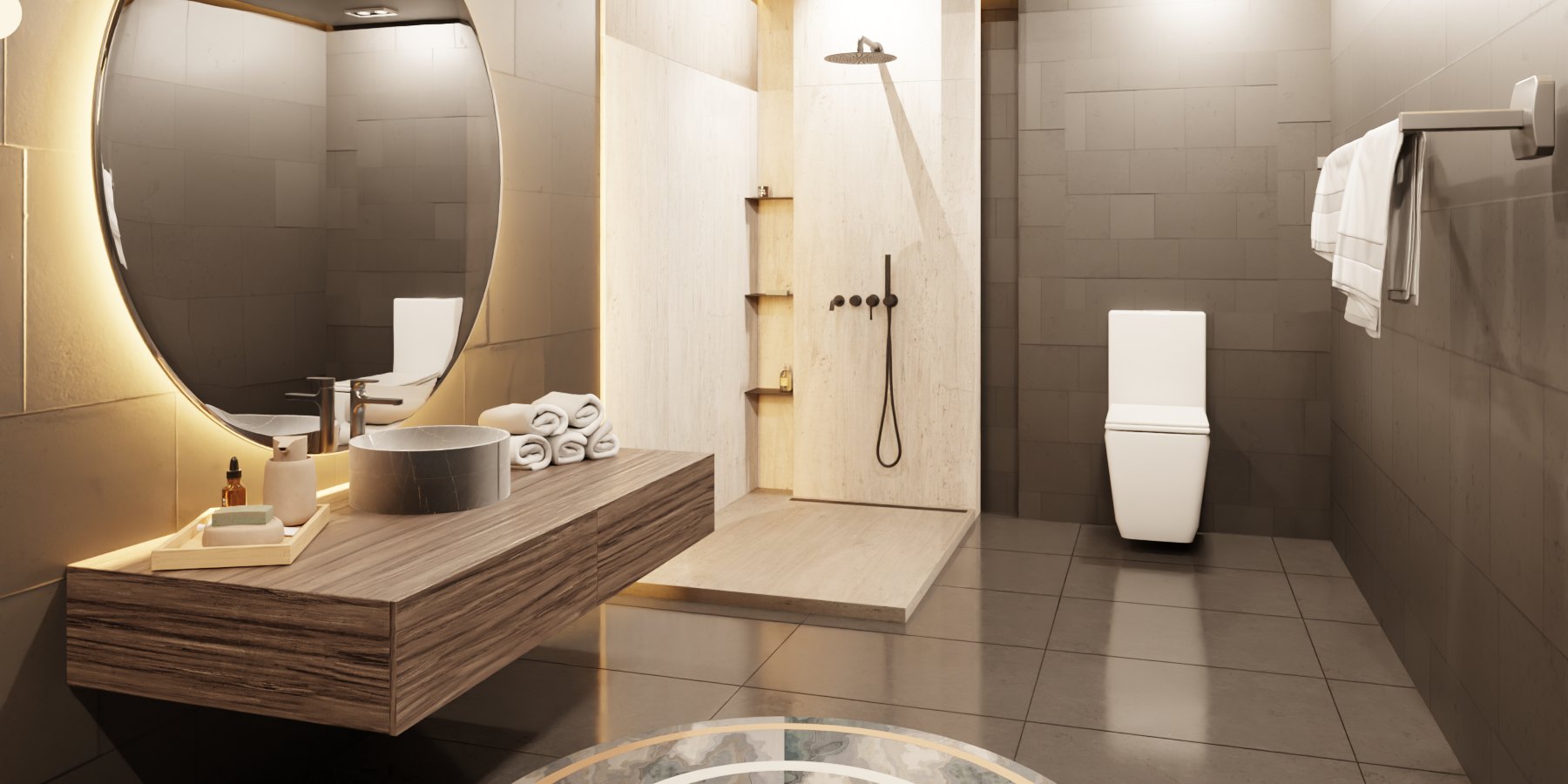
9,600+ furniture models5,500+ materialsAuto FurnishSmart SearchBlender 5.0 and above
Choose a category
Pick a piece and add it, let Smart Search find it, or let Auto Furnish fill the whole room.
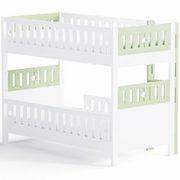
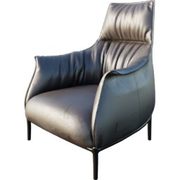
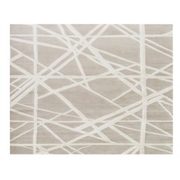
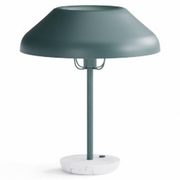
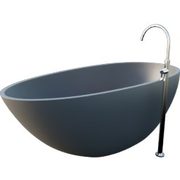
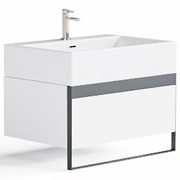
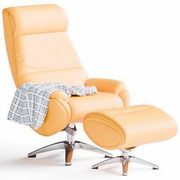
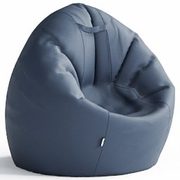
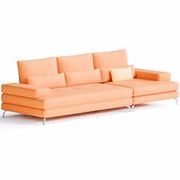
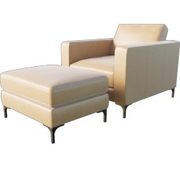
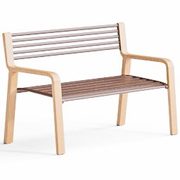
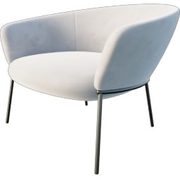
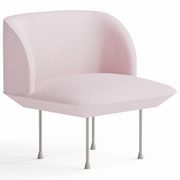
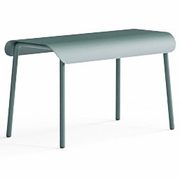
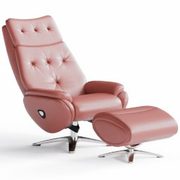
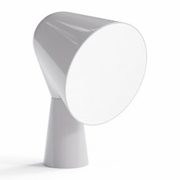
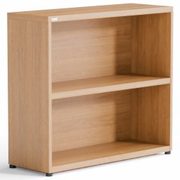
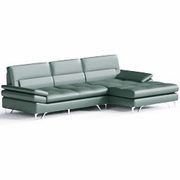
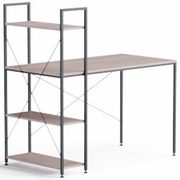
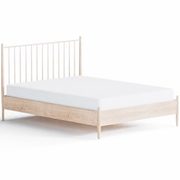
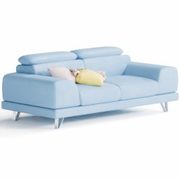

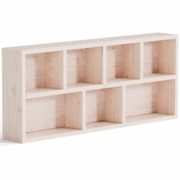
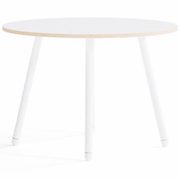
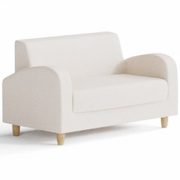
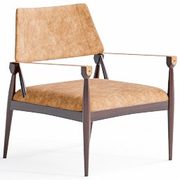
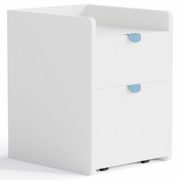
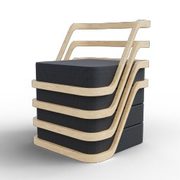
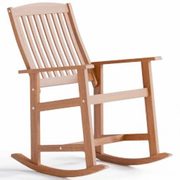
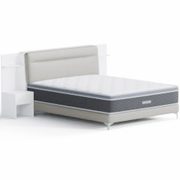
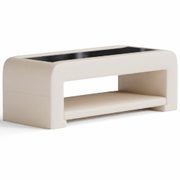
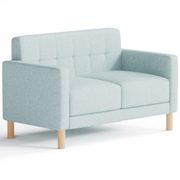

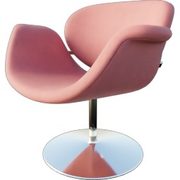
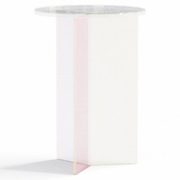
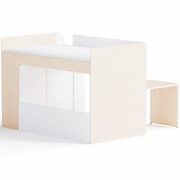
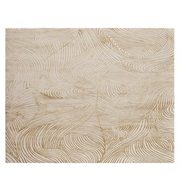
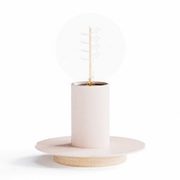
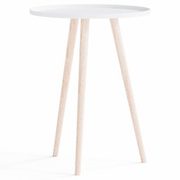
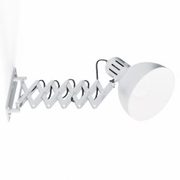
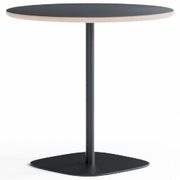
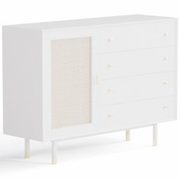
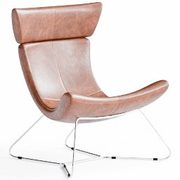
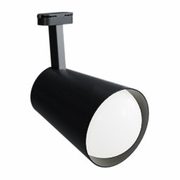
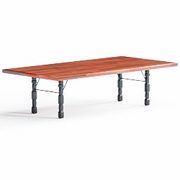
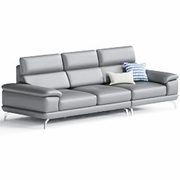
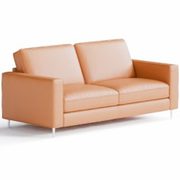
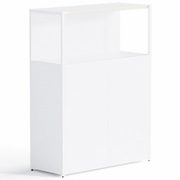
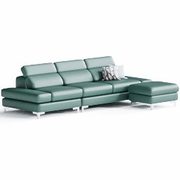
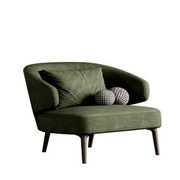
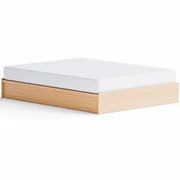
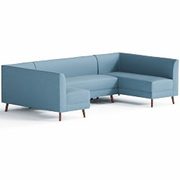
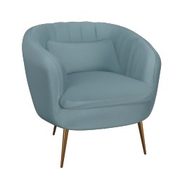
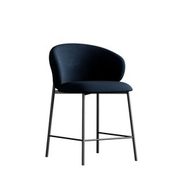
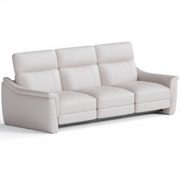
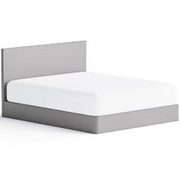
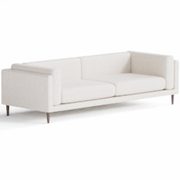
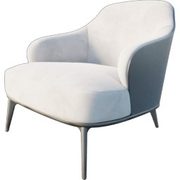
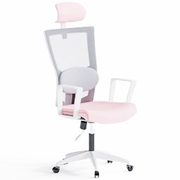
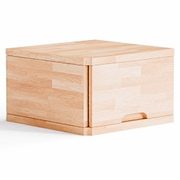
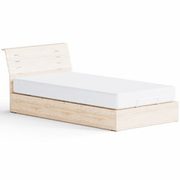
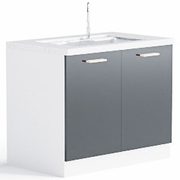
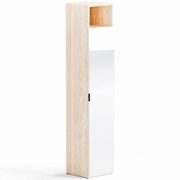
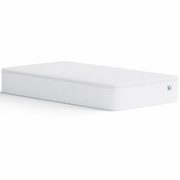
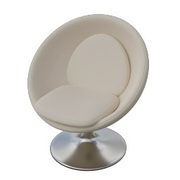
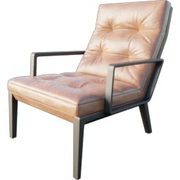
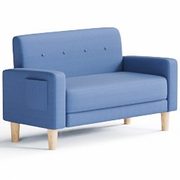
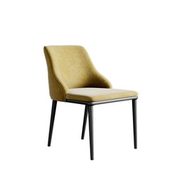
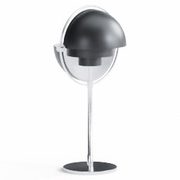
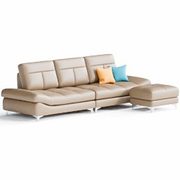
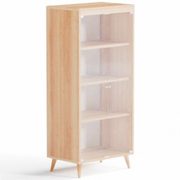
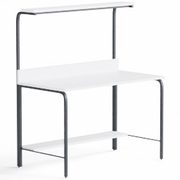
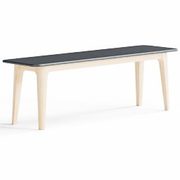
Every piece above is a real model from the add-on
Choose a category, type a name, and click Add to Scene. The piece lands right on the floor.
Add a piece and move it: it sits right on the floor, the rug or the table. No floating furniture.
Type what you need and pick a colour: the closest furniture and materials come first. Add a piece, or put a material on the floor.
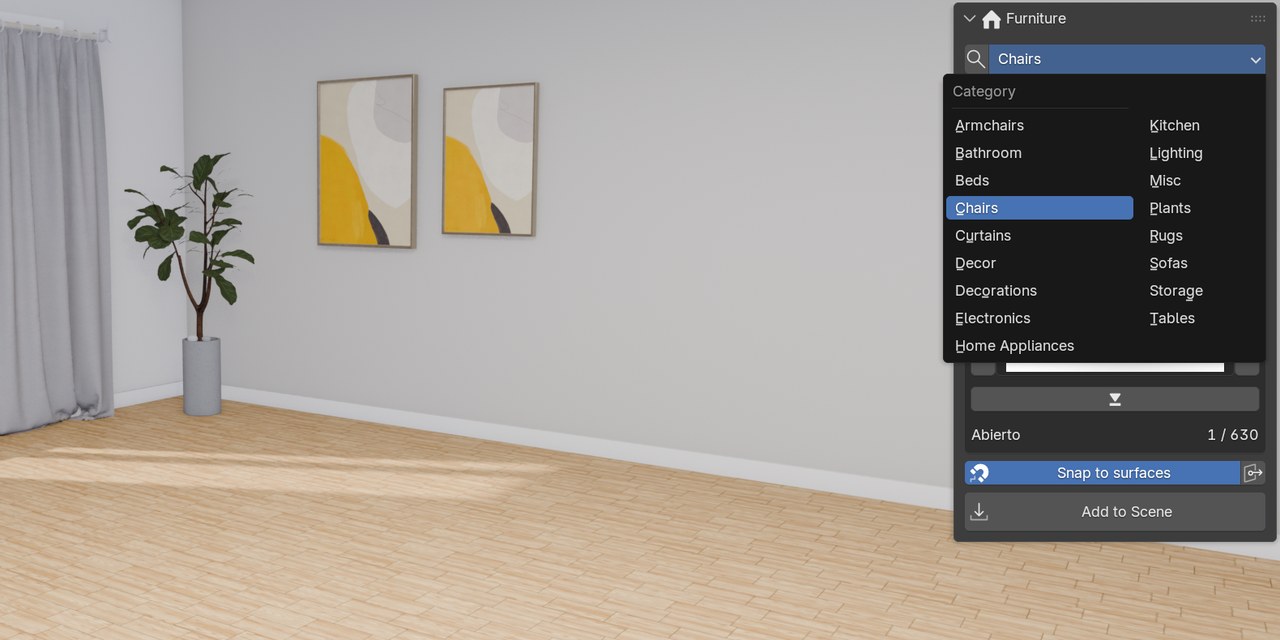
Sofas, beds, tables, kitchens, lamps, rugs, plants and more. Every category has big previews, a search box and one Add to Scene button.
Search any piece, filter by category or colour, and see exactly where to find it in the add-on.
Scroll inside the library · open it full screen ↗
Click Furnish Area, pick the room type, press Furnish: the room fills with a matching set of furniture, rugs, art and decor.
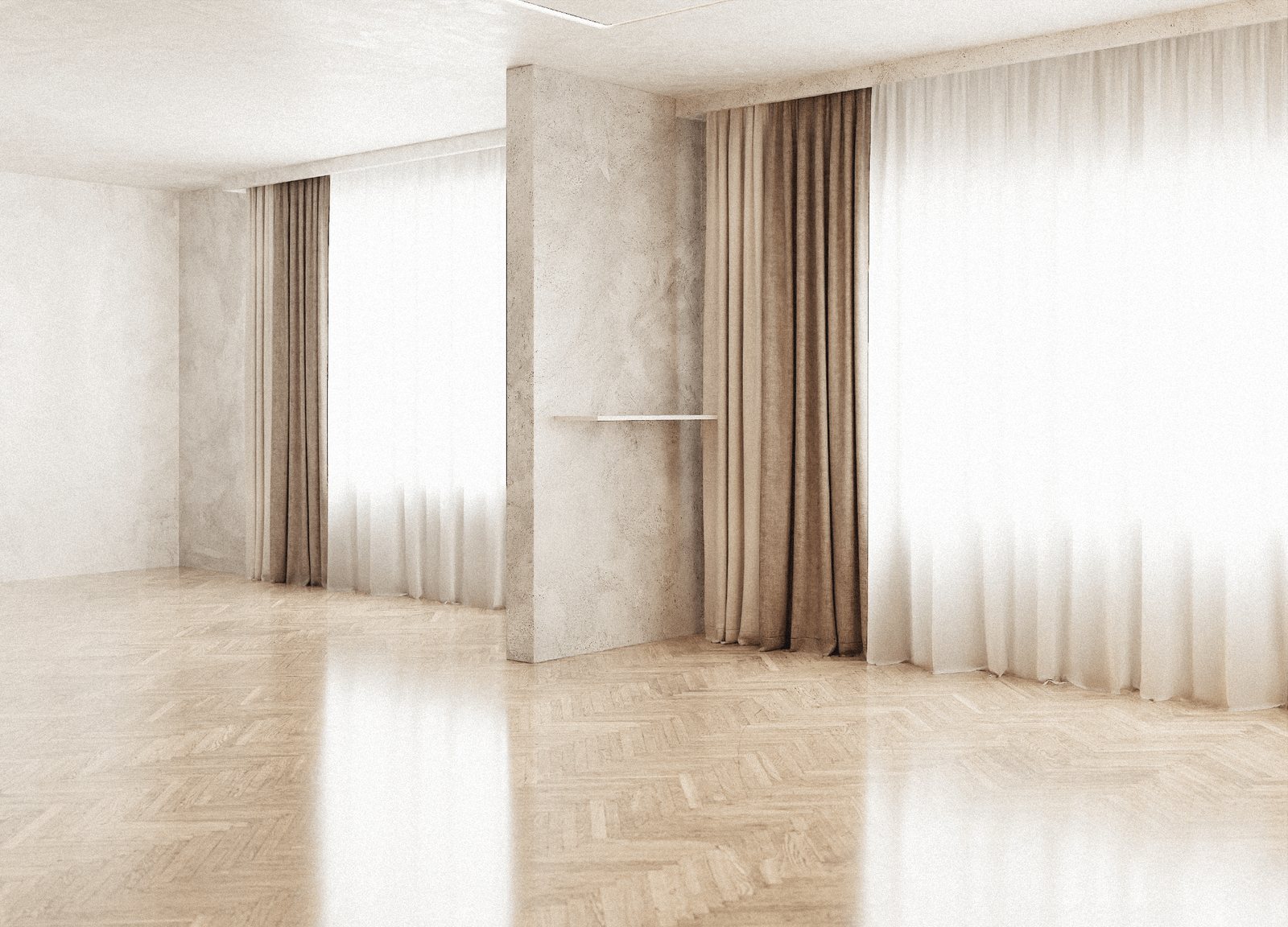
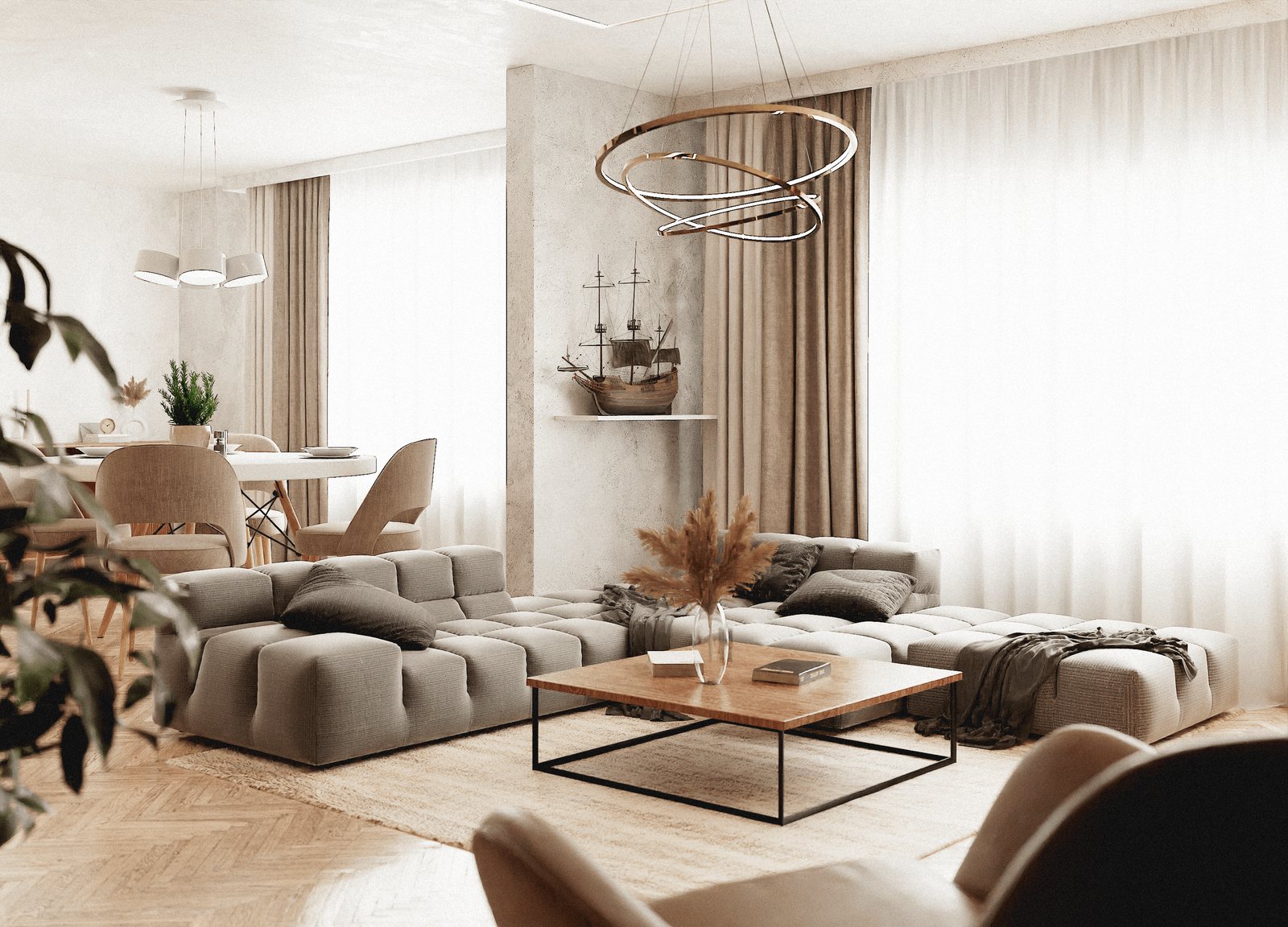
Drag across the picture to compare
Click Furnish Area and it fits your room. Pick the room type and press Furnish.
Every press of Furnish builds a brand new matching set, so the room always looks designed.
Bedroom, kitchen, living room and bathroom: furnish every room of the plan.
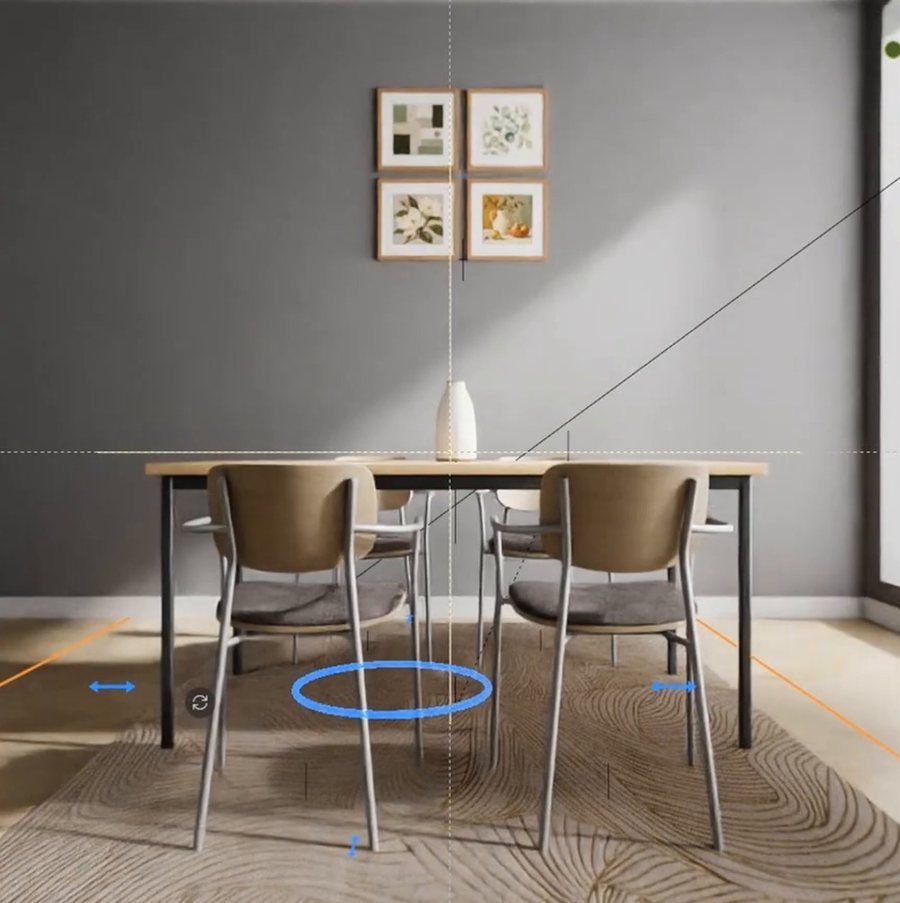
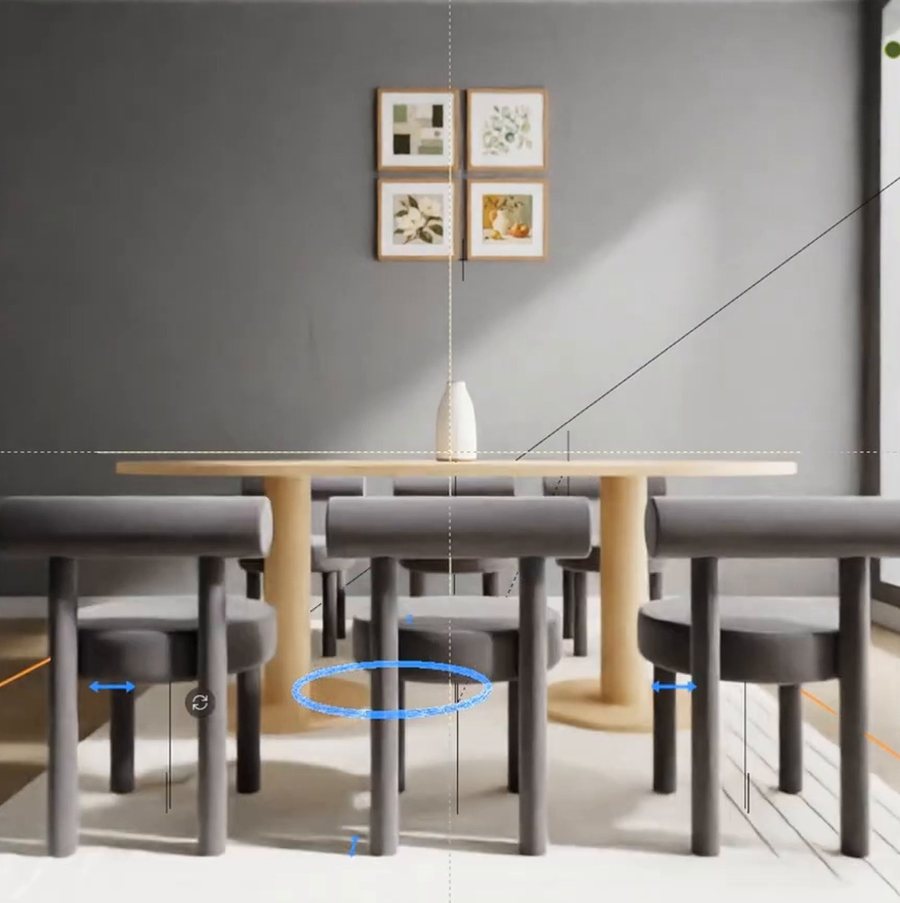 REAL RESULT · BLENDER
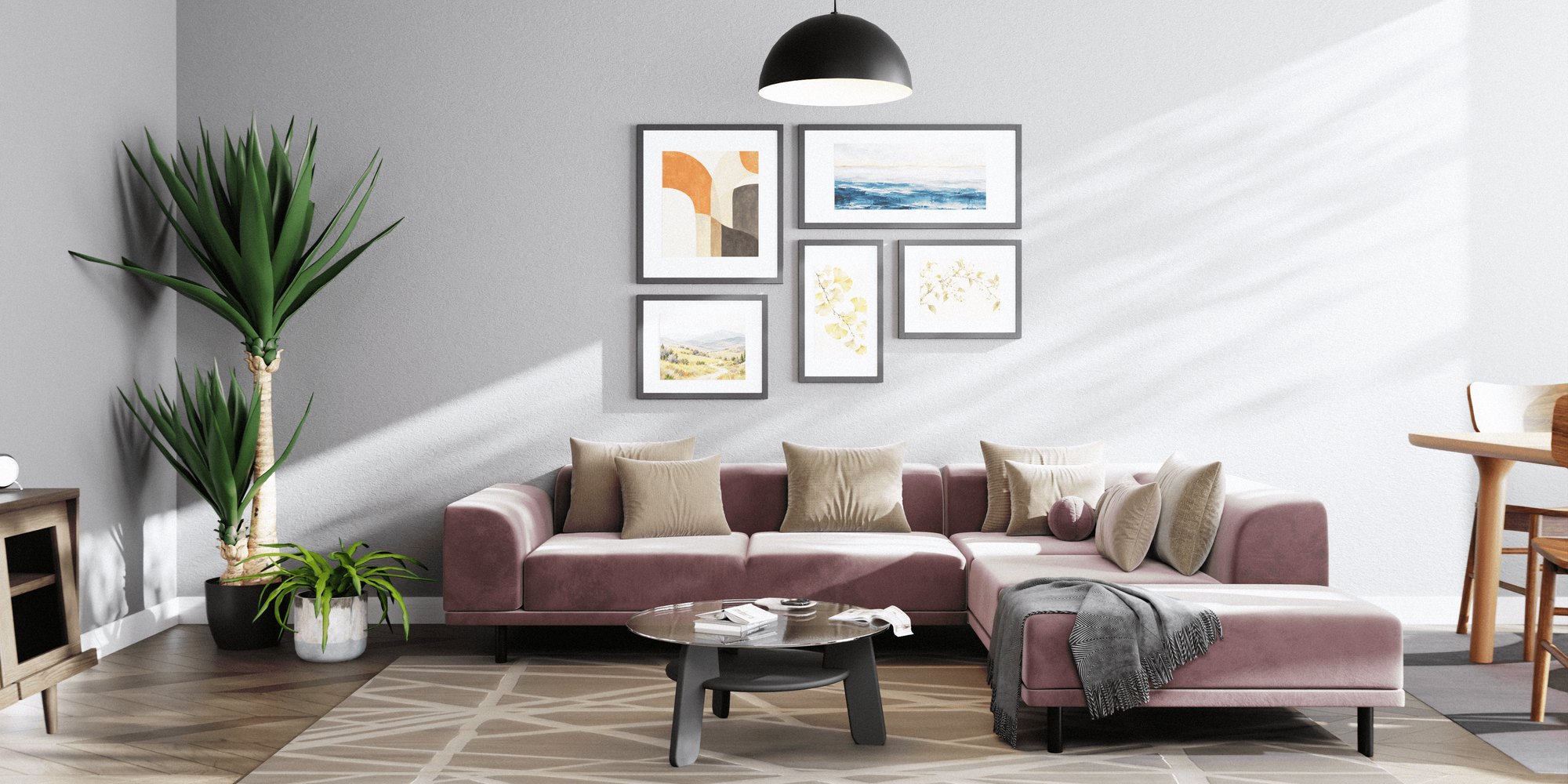
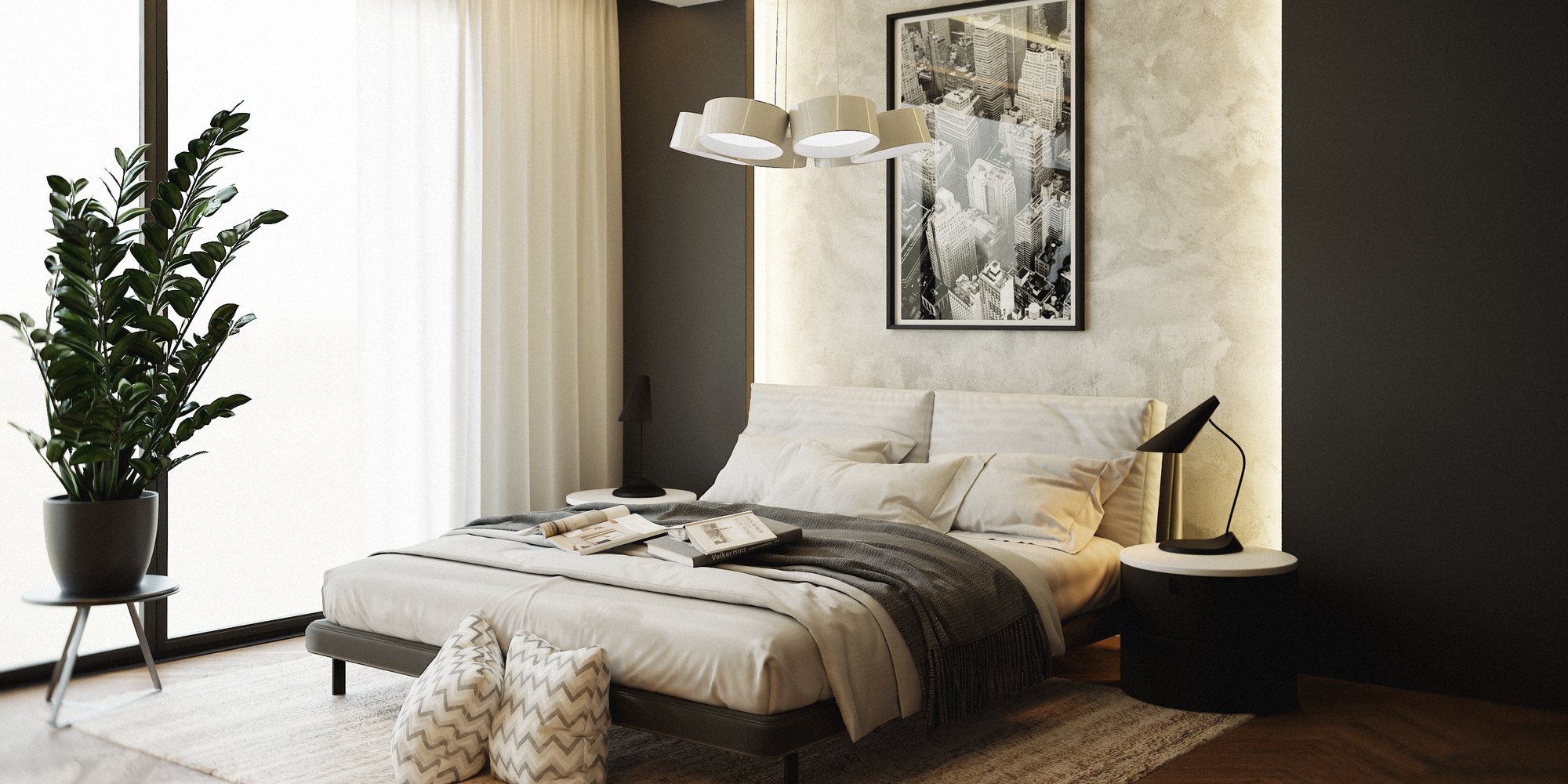
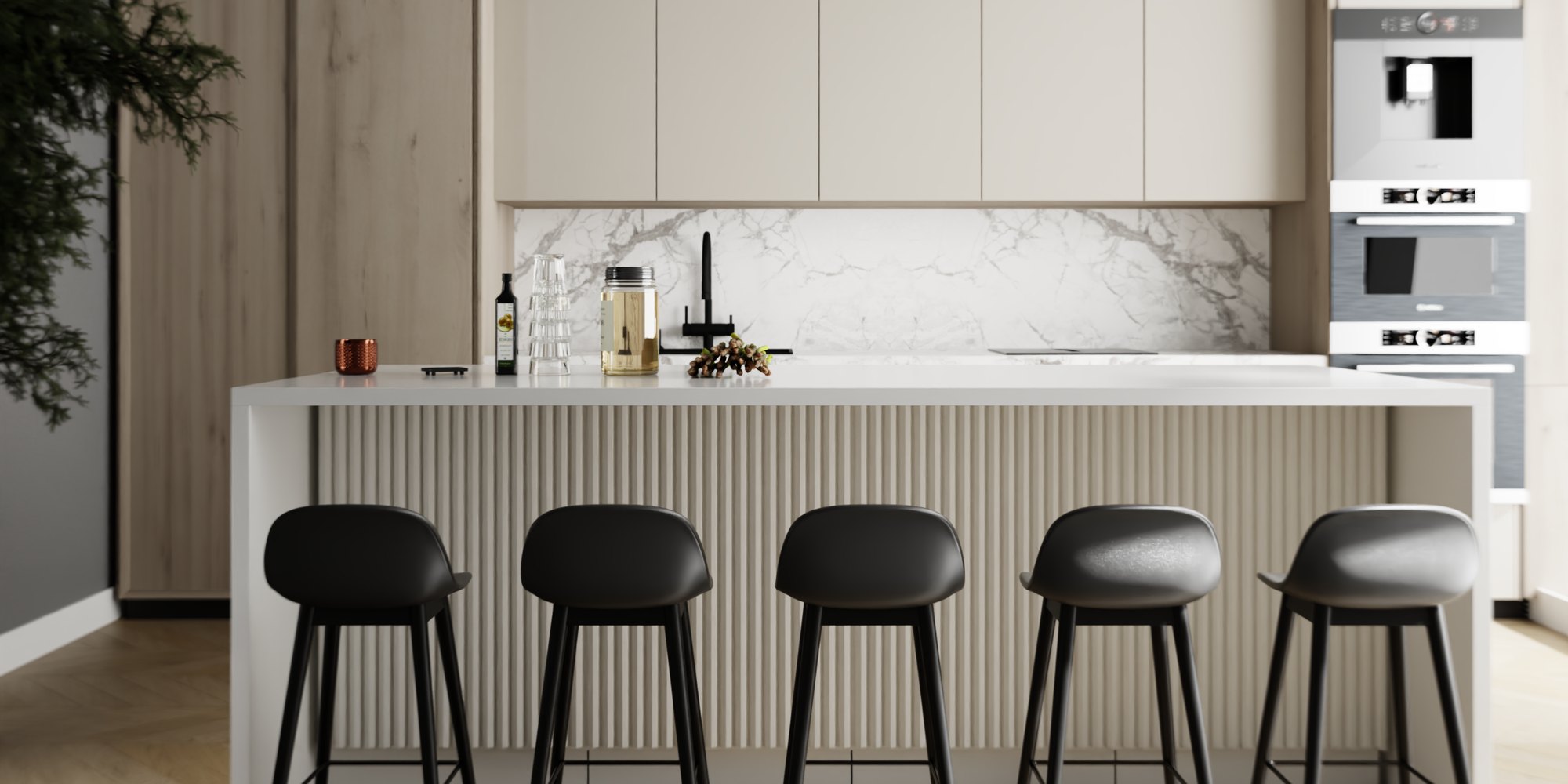
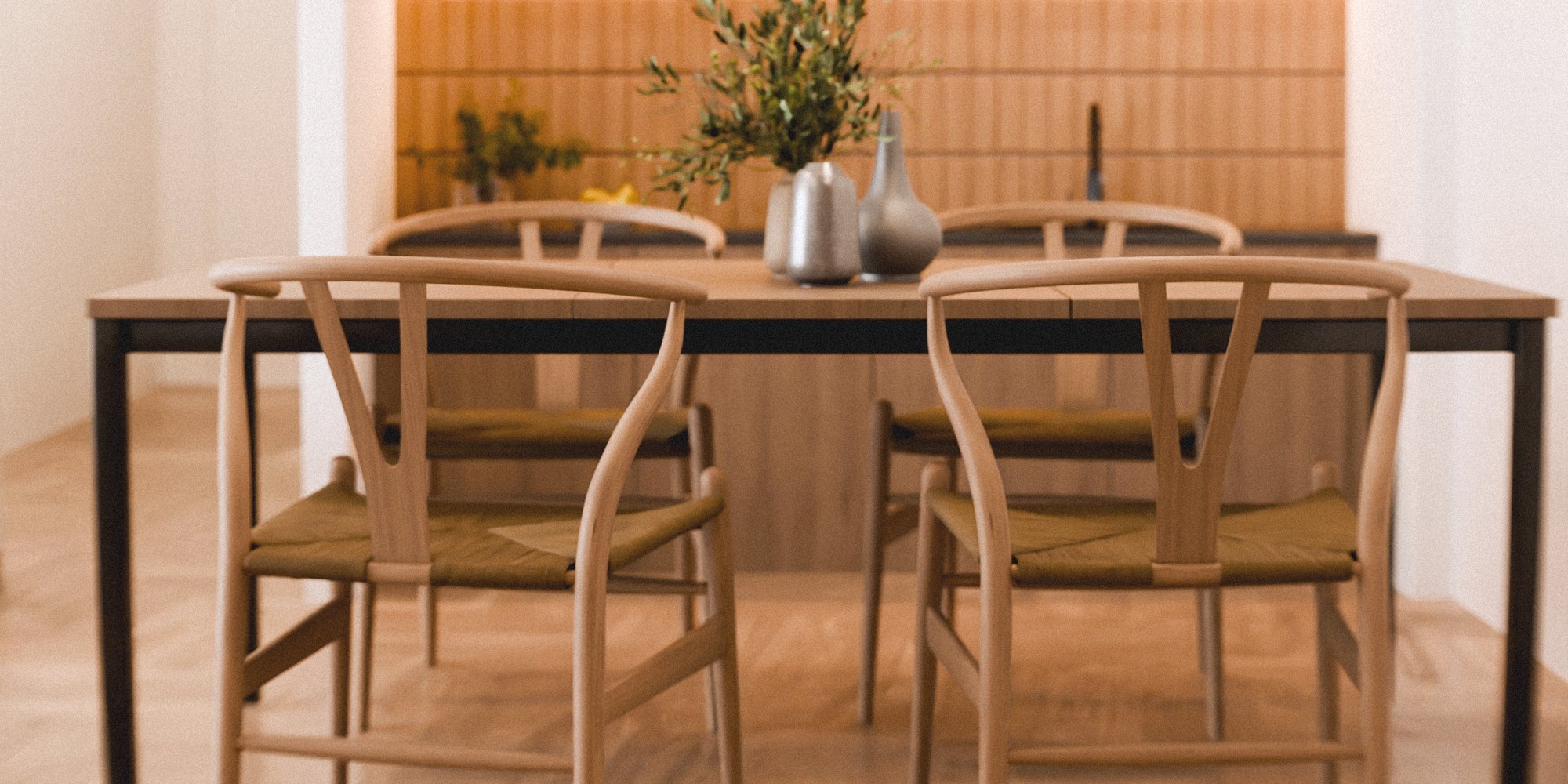
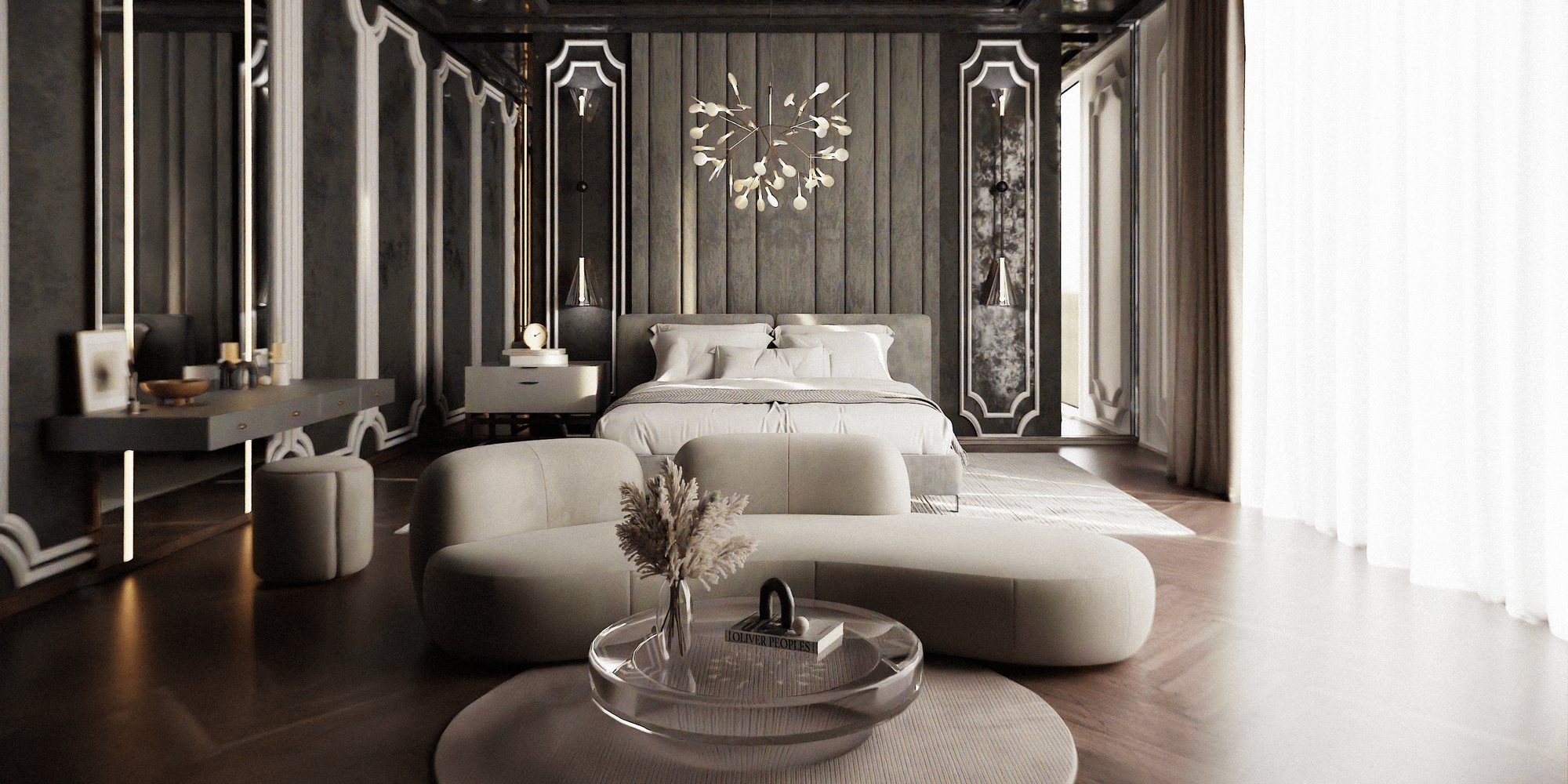
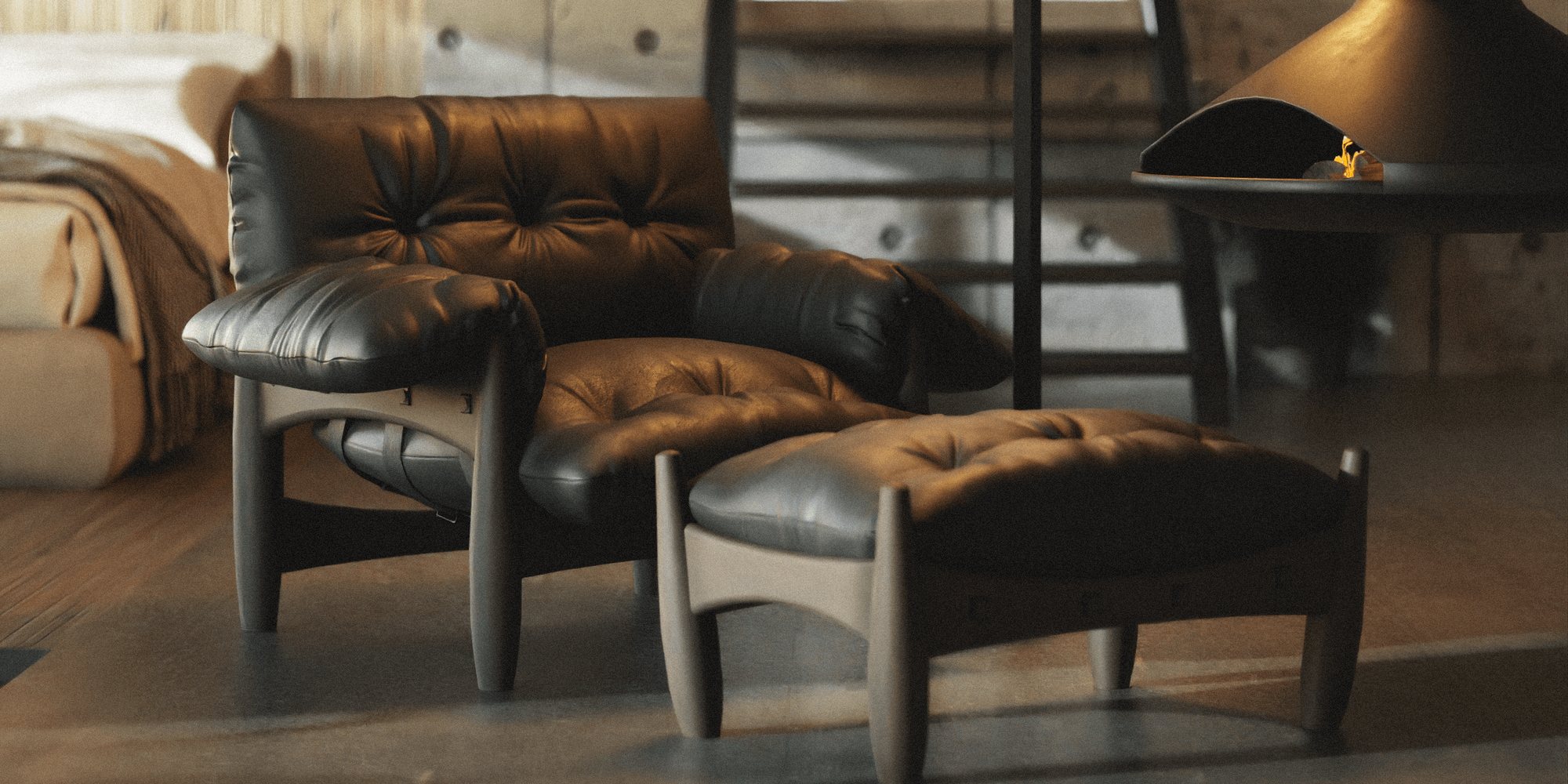
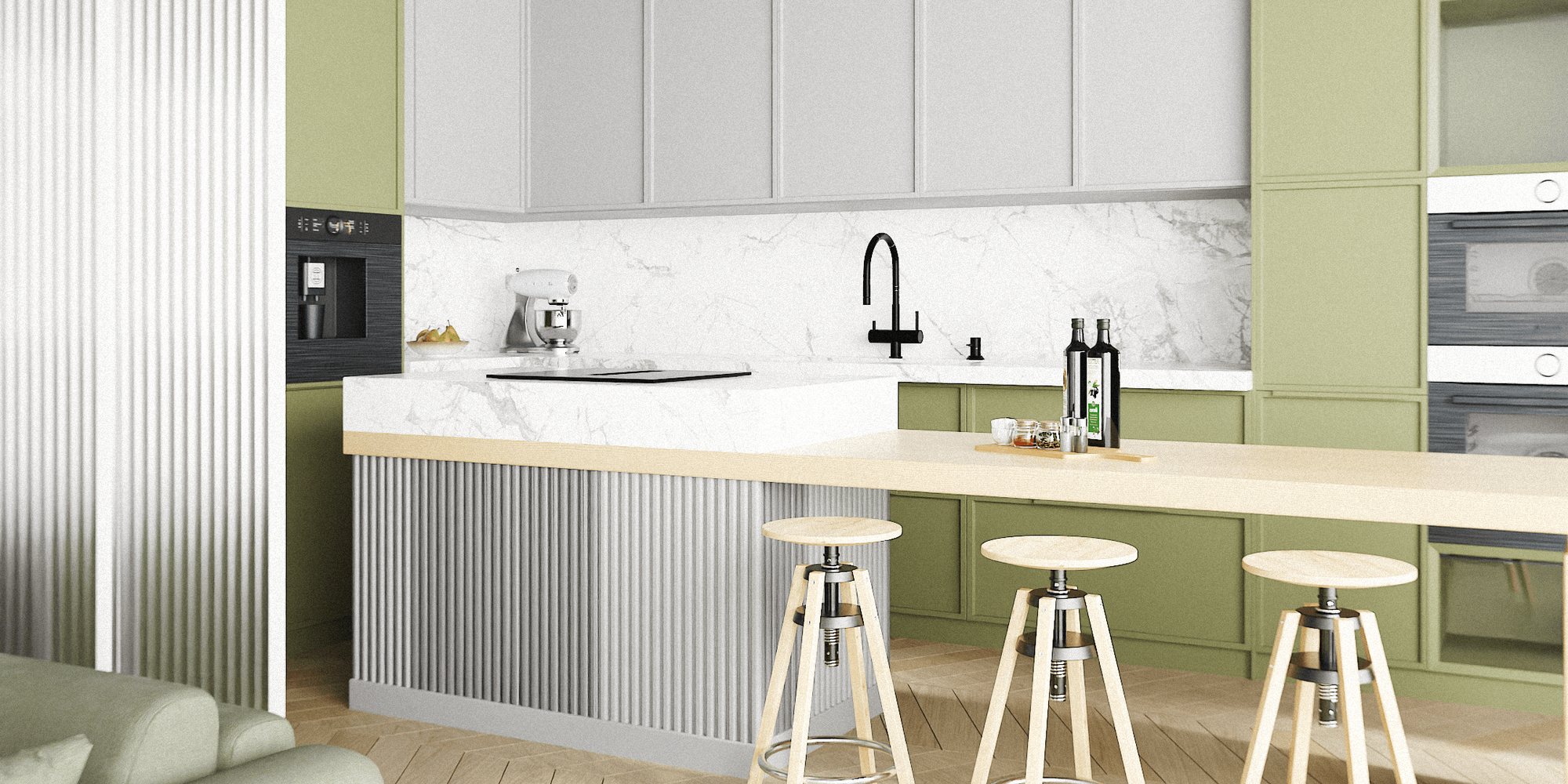
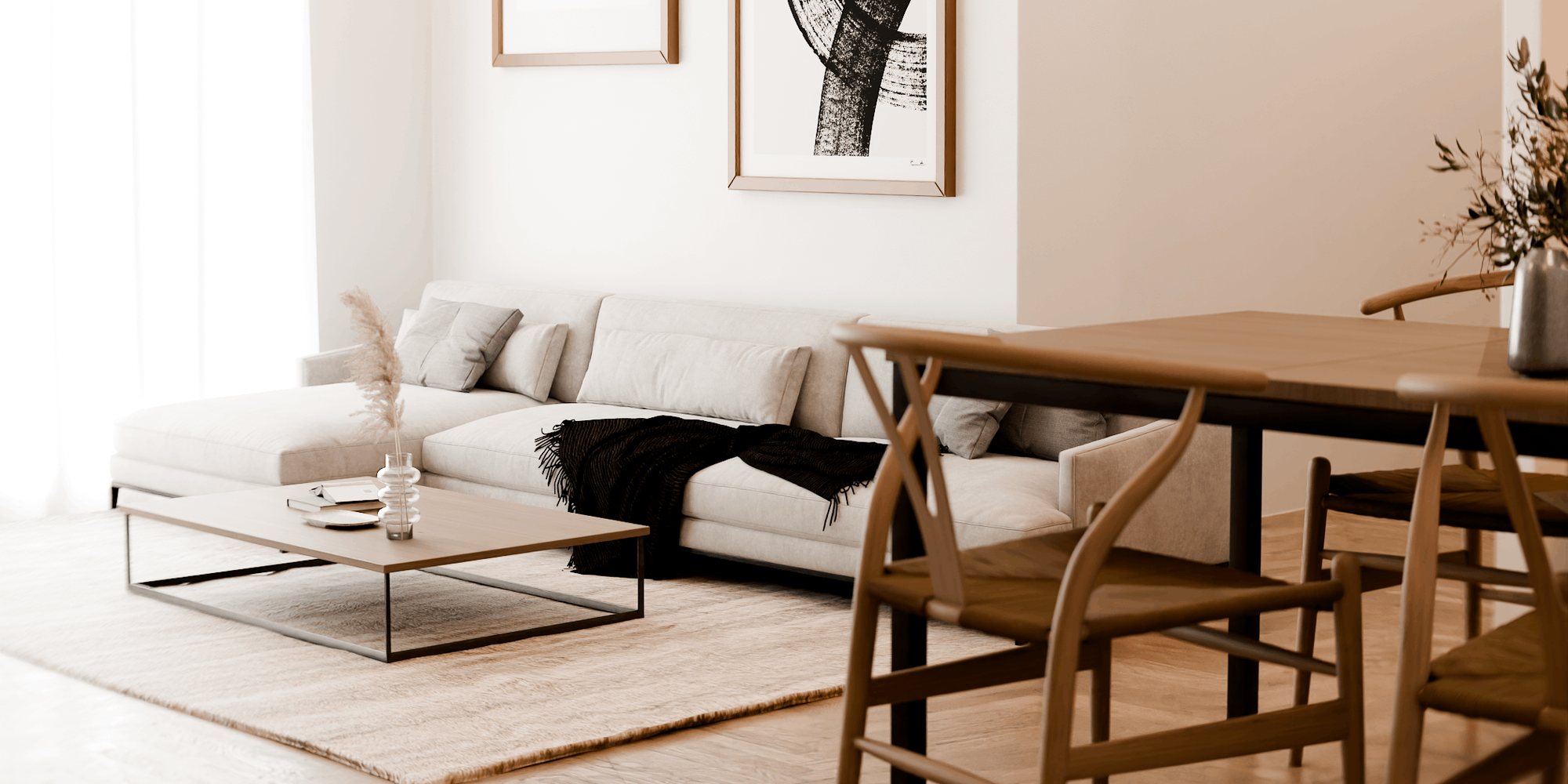
Four real results of the same room in Blender. Chairs, table, rug and decor change together.
17 categories: sofas, beds, tables, chairs, kitchens, lamps, rugs, storage and more.
Flip with the arrows, or load every picture at once.
Pieces stick to floors, tables and walls while you place them.
Drop any piece exactly where your cursor is.
Size the Furnish Area to your room in one click, or draw a rectangle.
Mark them so nothing blocks the way. Flip a door in one click.
Try new colours on the whole set, or go back to the originals.
Keep the pieces you love and resize the rest.
Add your own furniture to the library, in your own categories.
Wood, stone, fabric, metal and more, with big previews and sliders. And if it's not there, the AI makes it.
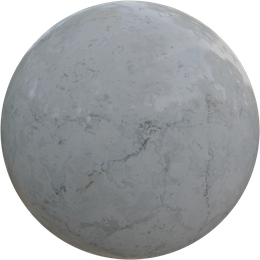
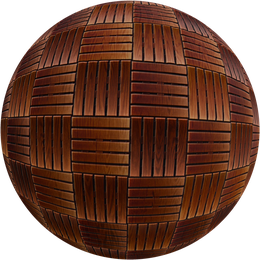
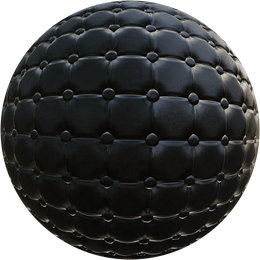
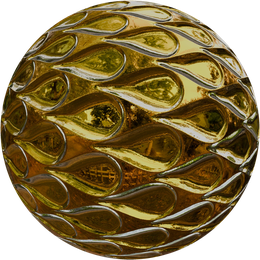
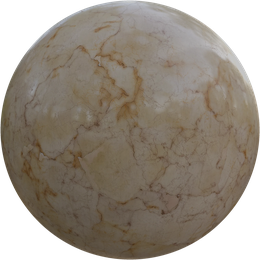
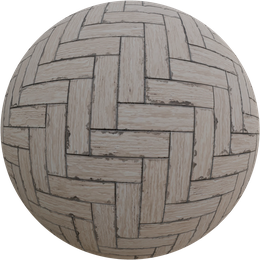
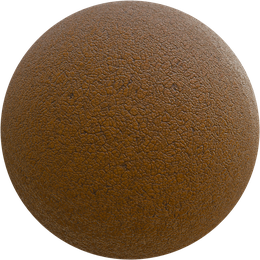
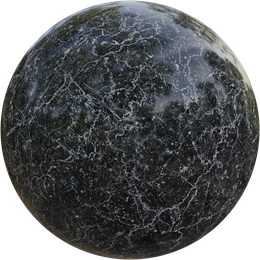
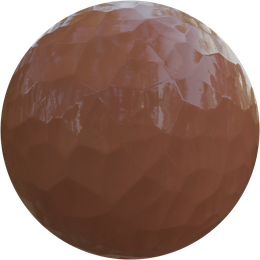
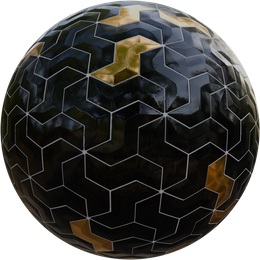
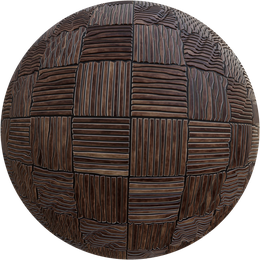
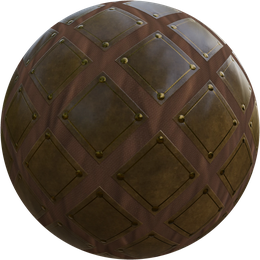
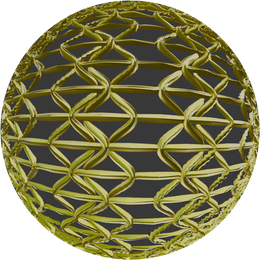
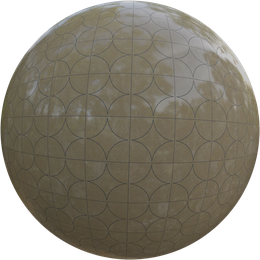
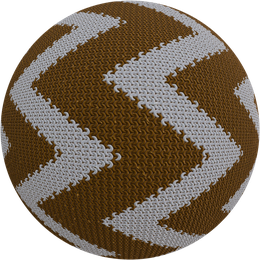
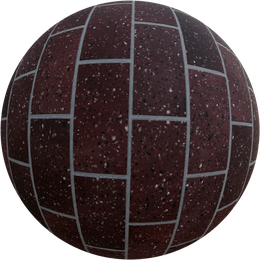
Every ball above is a real material from the add-on
Select a floor, a sofa or a table, pick a material from the big previews, and click Apply. Here: herringbone parquet, cognac suede and black marble.
Every material has its own sliders, so it fits your scene.
Type a tag and pick a colour: the closest real materials show up first.
Turn a folder of your own PBR texture sets into ready materials in one click.
Put labels, logos and small details on top of any material.
Blend two materials on one object with a brush, like rust on metal.
Clean colours and metals, one click each.
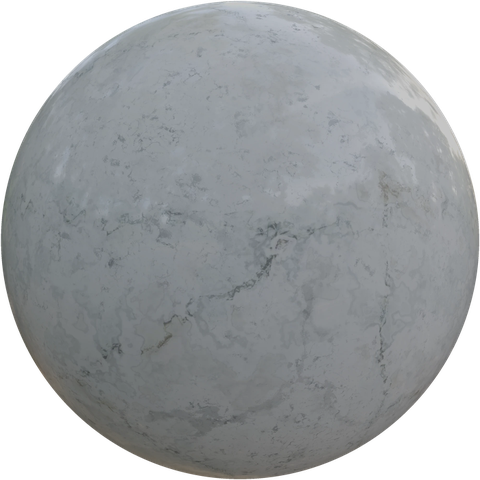
A small taste of the 5,500+ materials inside. Click a ball.
Wood, stone, fabric, metal, tiles, glass, car paint and more.
PBR materials with real texture maps, plus tweakable procedural ones.
Append the materials of other .blend files, a whole folder or just one.
Feeling lucky? Apply a random one from any category.
Flip through each category, or open every preview at once.
Every material works in both render engines.
The AI Textures add-on comes with Interiorify Pro. Describe any surface and get a seamless, real-size material, made on your own PC.
Describe any surface in a few words. The AI makes a seamless material and puts it on your selected objects.
Not sure what to write? The lamp button gives you ideas for stone, wood, metal, fabric and ground.
The first setup downloads the free AI model once (about 6-7 GB). Tested on NVIDIA graphics cards.
Bake, HDRI lighting, scene helpers and cleanup, in the same tab.
Turn the active material into real texture maps, ready for games and export.
Random viewport colours make every material easy to see. Back to normal in one click.
Save the nodes you use all the time and add them back in one click.
Save your own node groups once, use them in every project.
Point it to your HDRI folder once, then pick one and click Apply.
Put selected objects right on the floor.
Move the origin to the bottom centre, so things sit and snap nicely.
Surfaces, vertices or off, in one click.
Put the 3D cursor on a selection or a vertex.
Remove unused materials, meshes, lights, cameras, brushes and node groups.
Lighter viewport while you work on big scenes.
Keep only the panels you use.
A step-by-step guide right in the panel.
Move your library folder or clean it up, right from the panel.
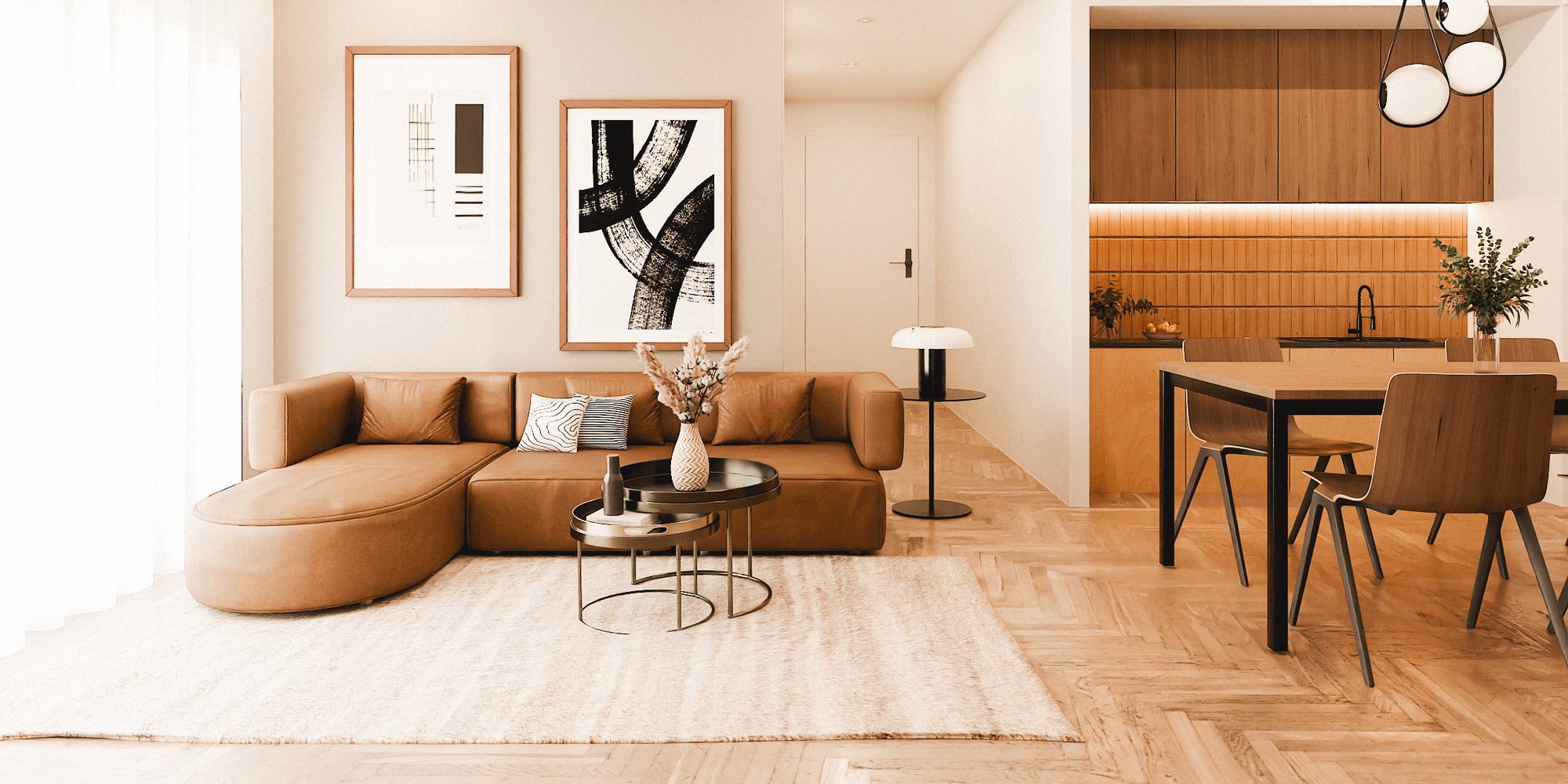
Every room in these renders was furnished with the models and materials inside the add-on, and rendered in Blender.
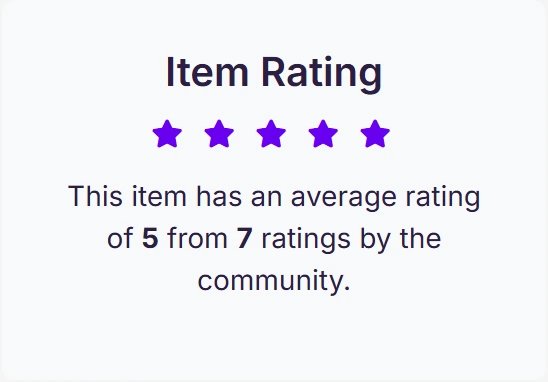
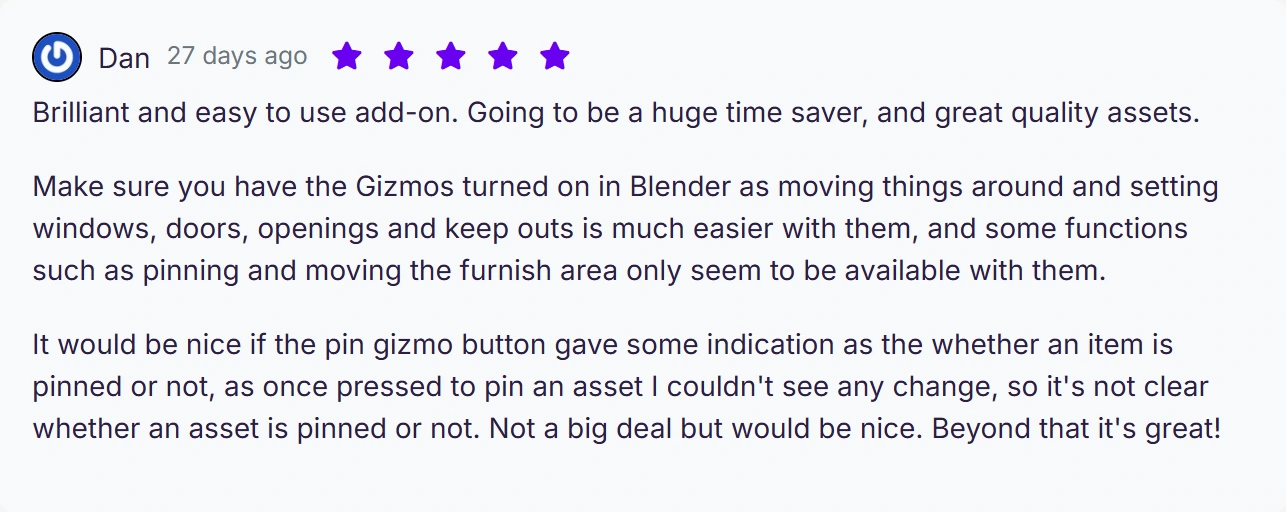
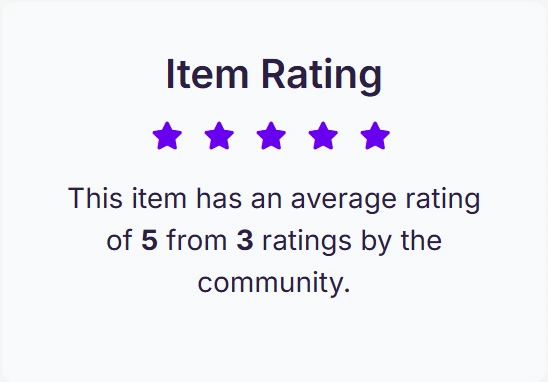
Real screenshots from the Superhive rating pages of the two add-ons inside Interiorify Pro.
Interiorverse made Auto Furnish and the furniture library. CAN OF TEXTURES made the textures. We put it all in one panel.
The library keeps growing. About 400 new assets are planned for the first month, and the price goes up soon.
Blender 5.0 and above. Cycles and EEVEE. Installs as a Blender extension.
The library comes in parts. Extract them, then pick the library folder in the panel once.
Message us on Superhive. We read every message.
Blender 5.0 and above, with Cycles and EEVEE.
The add-on with 9,600+ furniture models in 17 categories, 5,500+ materials, Auto Furnish, Smart Search, the material tools, and the AI Textures add-on as a bonus.
Install the add-on zip, extract the library parts, then pick the library folder in the panel once. A step-by-step guide is included.
No. The materials are included. If you already use Materialify Pro, both add-ons work side by side.
Yes. Press Furnish again for a new matching set, swap single pieces with Replace, or move anything by hand.
A bonus add-on that comes with Interiorify Pro. Type a surface and it makes a seamless, real-size material on your own PC, with no internet or credits after the first setup.
It runs on your own computer and is tested on NVIDIA graphics cards. The first setup downloads the free AI model once (about 6-7 GB). If your antivirus asks, allow the AI engine that comes with the add-on.
Yes. We keep adding new assets in upcoming updates. About 400 new assets are planned for the first month.
Yes. After purchase you can use the furniture models, materials and textures in your personal and commercial projects, for life. You just can't resell or share the models and textures themselves.
Message us on Superhive. We read every message.
New add-ons, tips and behind-the-scenes.